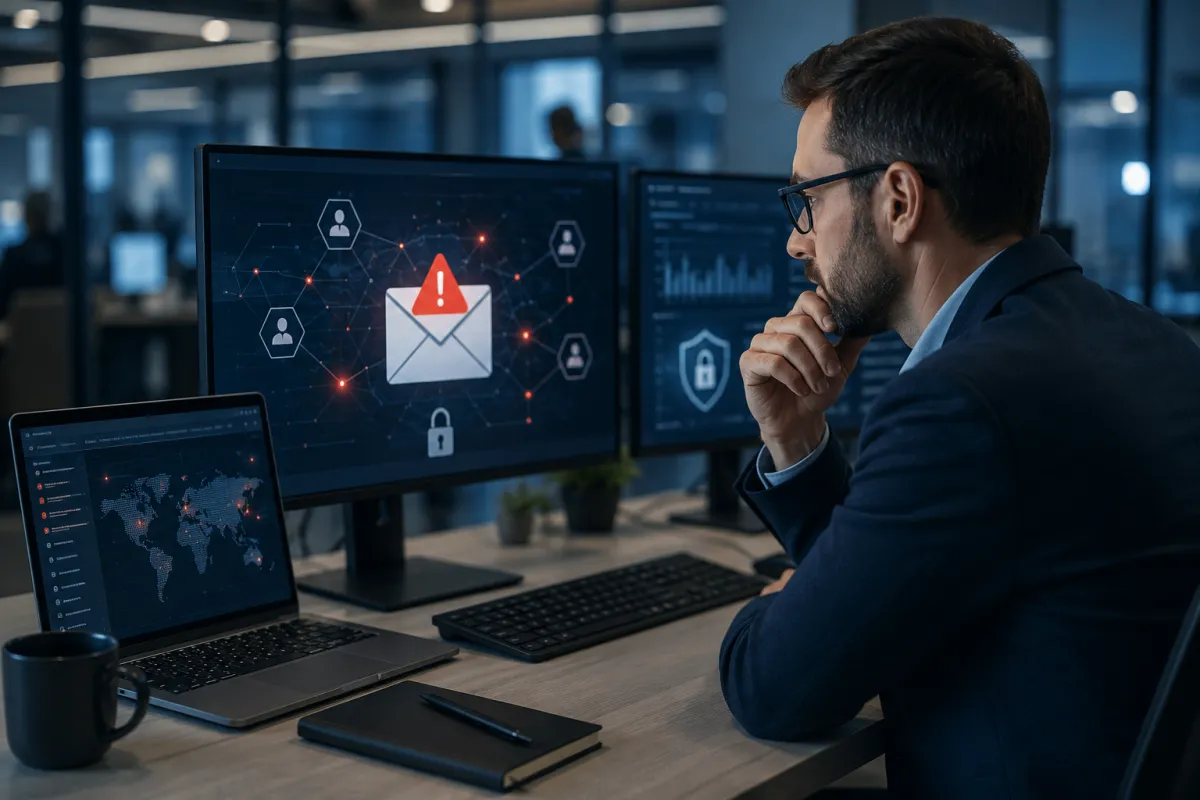
What Should You Do If a Business Email Account Gets Hacked?
If a business email account is compromised, act quickly: block access, reset credentials, revoke active sessions, review forwarding rules, check sent messages, and determine whether customers, vendors, or employees received fraudulent emails.
The goal is not only to recover the inbox. You also need to understand what the attacker accessed, remove any hidden changes, protect connected systems, and prevent the same method from working again.
Tech20’s cybersecurity services focus on protecting business identities, email, devices, networks, cloud systems, and data through prevention, detection, response, and recovery.
Quick Answer
Take these steps immediately:
Disable or temporarily block the affected account.
Revoke all active login sessions.
Reset the password from a trusted device.
Review and replace the account’s MFA methods.
Check inbox rules and automatic forwarding.
Review recently sent and deleted messages.
Inspect connected applications and administrator changes.
Warn employees, customers, and vendors when necessary.
Check other accounts for similar activity.
Document what happened and strengthen security controls.
Do not assume that changing the password alone has solved the problem.
How Can You Tell a Business Email Account Was Hacked?
Possible warning signs include:
Messages appearing in the Sent folder that the employee did not send
Customers reporting unusual payment requests
Unexpected password-reset emails
Unfamiliar MFA prompts
New forwarding or inbox rules
Emails disappearing or moving automatically
Login alerts from unfamiliar locations
Contacts receiving phishing messages
The employee being locked out
Changes to account recovery details
New applications connected to the mailbox
A compromised account may continue working normally while the attacker quietly monitors conversations or waits for a valuable payment request.
Why Business Email Accounts Are Valuable to Attackers
A business inbox may contain:
Customer conversations
Contracts
Invoices
Banking information
Employee details
Shared-file links
Password-reset messages
Calendar appointments
Internal discussions
Vendor payment instructions
An attacker who controls a real employee account can send messages that appear more credible than ordinary spam.
They may impersonate the employee, request payments, change banking instructions, access shared files, or send phishing emails to coworkers and customers.
Step 1: Block the Account
The first priority is stopping the attacker from continuing to use the account.
An administrator may need to:
Temporarily disable sign-in
Block the user
Reset the password
Revoke active sessions
Remove unauthorized authentication methods
Suspend connected applications
The exact process depends on the email and cloud platform.
The employee should not continue using a device that may be infected until it has been checked.
Step 2: Revoke Active Sessions
Resetting the password may not immediately end every active session.
An attacker may already have:
An authenticated browser session
A mobile-device session
An application token
Access through a connected third-party service
Revoking sessions forces users and applications to authenticate again.
This helps remove access that may otherwise remain active after the password changes.
Step 3: Reset the Password Safely
Reset the password using a trusted device.
The new password should be:
Unique to the account
Long and difficult to guess
Different from previously used passwords
Not shared with another employee
Stored securely in an approved password manager
If the same password was used on another platform, those accounts should also be changed.
Do not send the replacement password through the compromised mailbox.
Step 4: Review Multi-Factor Authentication
Multi-factor authentication provides another layer of protection, but the attacker may have added a new authentication method or convinced the employee to approve a login.
Review:
Registered phone numbers
Authentication applications
Recovery email addresses
Security keys
Recently approved MFA prompts
Backup authentication methods
Remove anything that is unfamiliar.
MFA should be required for all business email accounts, especially administrators, finance employees, executives, and employees who handle sensitive customer information.
Step 5: Check Email Forwarding and Inbox Rules
Attackers often create hidden rules that allow them to monitor conversations after the password has been changed.
Look for rules that:
Forward email to an external address
Delete incoming security alerts
Move replies into hidden folders
Mark messages as read
Redirect invoices
Hide messages containing payment terms
Remove warnings from the email provider
Review both inbox rules and account-level forwarding settings.
Any unexplained rule should be investigated before it is removed so the response team understands what information may have been exposed.
Step 6: Review Sent, Deleted, and Archived Messages
Check whether the attacker sent messages from the account.
Look for:
Payment requests
Banking-detail changes
Fake shared-document links
Password-reset messages
Requests for confidential information
Phishing messages sent to coworkers
Replies to existing customer conversations
Also review the Deleted, Archive, Drafts, Spam, and Trash folders.
Attackers may delete messages to hide their activity.
Step 7: Check Connected Applications
Employees sometimes grant third-party applications access to email, files, contacts, or calendars.
A compromised account may have authorized a malicious or unnecessary application.
Review:
Recently added applications
Applications with mailbox access
CRM integrations
Calendar tools
File-sharing services
Automation platforms
Mobile applications
Browser extensions
Remove access that is unfamiliar, unnecessary, or no longer approved.
Step 8: Review Administrator Activity
If the compromised account had administrative access, the potential impact is more serious.
Review whether the attacker:
Created new users
Changed user roles
Added another administrator
Disabled security controls
Changed mail-flow rules
Accessed other mailboxes
Reset another employee’s password
Modified audit or retention settings
Added external domains or applications
Administrator accounts should be separate from normal daily-use accounts whenever possible.
They should also receive stronger authentication and monitoring.
Step 9: Check the Employee’s Device
A password reset will not fully solve the problem if the employee’s laptop or phone contains malware.
The device should be reviewed for:
Malware
Suspicious applications
Browser extensions
Remote-access software
Unapproved administrative tools
Missing security updates
Disabled endpoint protection
Stolen browser cookies or sessions
The investigation should also consider whether the account was compromised through phishing rather than device infection.
Step 10: Determine What the Attacker Accessed
The business should establish the likely timeline.
Review:
First suspicious sign-in
Locations and devices used
Messages opened
Files downloaded
Forwarding activity
Applications accessed
Messages sent
Administrator actions
Customer or vendor conversations viewed
This helps determine whether the incident involved only one mailbox or exposed broader business information.
The company may need legal, insurance, privacy, or regulatory guidance depending on what information was accessed.
Should You Notify Customers or Vendors?
Notification may be necessary when fraudulent messages were sent or sensitive conversations were exposed.
Contact affected people using a trusted channel such as:
A verified phone number
A different email account
An existing customer portal
A known account representative
The notification should clearly explain:
Which account was compromised
When suspicious messages may have been sent
What recipients should ignore
Whether payment instructions were affected
How legitimate future requests will be verified
Who to contact with questions
Do not use the compromised account for important warnings until it has been secured.
What If the Attacker Requested a Payment?
Contact the finance team and financial institutions immediately.
If payment instructions were changed or money was transferred:
Contact the bank
Request a transfer recall when possible
Preserve the fraudulent messages
Notify the involved vendor or customer
Contact cyber-insurance providers
Follow internal legal and incident-response procedures
Report the matter to the appropriate authorities when advised
Payment changes should never be approved based only on an email request.
Businesses should require an independent verification process using a known phone number or established approval workflow.
Check Other Employee Accounts
One compromised mailbox may indicate a wider phishing campaign.
Review other accounts for:
Similar suspicious sign-ins
Matching inbox rules
Unexpected forwarding
New applications
Repeated MFA prompts
Password reuse
Messages from the compromised account
Unusual administrator activity
Employees should be told what happened and what warning signs to report.
Avoid sharing unnecessary sensitive details while the investigation is active.
How Do You Prevent Another Email Compromise?
After containing the incident, address the weakness that allowed it to happen.
Require MFA
Require MFA across all employee and administrator accounts.
Improve Email Protection
Use filtering and security controls that help detect phishing, malicious links, dangerous attachments, spoofing, and impersonation.
Restrict Administrator Access
Give administrative privileges only to employees who genuinely require them.
Train Employees
Teach employees to recognize:
Fake login pages
Unexpected MFA prompts
Urgent payment requests
Unusual shared-document invitations
Requests to bypass normal procedures
Review Sign-In Alerts
Assign someone to investigate suspicious login and security alerts.
Use Individual Accounts
Avoid shared credentials. Every employee should have an identifiable account.
Secure Employee Devices
Keep operating systems, browsers, endpoint protection, and applications updated.
Review Third-Party Access
Remove old or unnecessary integrations and applications.
Tech20’s cybersecurity offering includes identity and access protection, email defense, endpoint and network security, cloud protection, backup planning, and incident readiness.
Create an Email-Security Response Checklist
A short checklist helps employees respond correctly during a stressful incident.
It should identify:
Who must be contacted
Who can disable accounts
Who reviews email logs
Who communicates with customers
Who contacts the bank or insurer
How evidence is preserved
When legal guidance is required
How the account is approved for reuse
The checklist should be reviewed after each incident and updated when systems or responsibilities change.
Common Email-Compromise Mistakes
Only Changing the Password
Active sessions, forwarding rules, applications, and authentication methods may remain.
Deleting Suspicious Messages Immediately
Preserve evidence until the incident has been reviewed.
Using the Compromised Inbox to Warn People
Use another trusted communication method.
Failing to Review Payment Conversations
Attackers frequently search for invoices, banking details, and ongoing financial discussions.
Assuming Only One Account Was Affected
Check other employees and administrative systems for related activity.
Returning the Employee to Work Too Quickly
Confirm that both the account and device are safe before restoring normal access.
Frequently Asked Questions
Can an attacker stay logged in after a password change?
Yes. Existing sessions or application tokens may remain active until they are revoked.
Does MFA completely prevent email hacking?
No security control guarantees complete protection. MFA greatly improves account security but should be combined with email filtering, monitoring, secure devices, and employee training.
Why do attackers create email-forwarding rules?
Forwarding lets them quietly receive copies of future messages, including invoices, customer replies, and password-reset information.
Should the employee’s computer be wiped?
That depends on the investigation. A device may need to be cleaned, rebuilt, or replaced when malware or unauthorized access is found.
Can cyber insurance help?
Coverage varies. Contact the insurer promptly and follow the policy’s reporting and incident-response requirements.
Can Tech20 help secure business email?
Tech20 provides layered cybersecurity services for identities, email, endpoints, networks, cloud environments, and business data, supported by incident-response and recovery planning.
Act Before One Compromised Inbox Becomes a Larger Business Incident
A hacked email account can affect customers, payments, files, employee accounts, and the company’s reputation.
Fast action should focus on removing unauthorized access, reviewing hidden changes, determining the impact, communicating carefully, and strengthening the controls that failed.
Tech20 helps businesses improve identity protection, email security, monitoring, endpoint protection, cloud security, and incident readiness as part of a coordinated cybersecurity strategy.
Learn more about Tech20 Cybersecurity Solutions or book a free technology assessment.